


An add-in is available for Classic Outlook to help you with reporting any suspicious emails that land in your inbox.
It only takes a few minutes to install the add-in.
Outlook Phishing Reporting Add-In
Traditional Outlook:
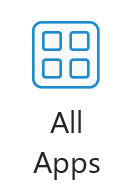
In your Outlook, head to the ‘All Apps’ button in your ‘Home’ toolbar. Then ‘Add Apps’.

Search for the ‘Report Phishing’ add-in using the search bar, and open the app by clicking on the search result.
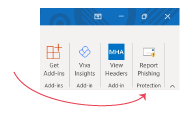
You will then see the add-in in your Outlook Home menu. Note: it can take up to 12 hours for the add-in to appear.
New Outlook:
In New Outlook, click on ‘More apps’ in your toolbar.
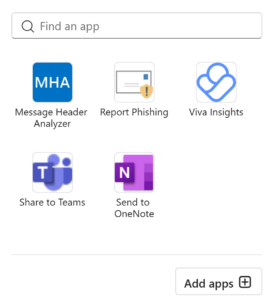
A menu will appear. You may see the Report Phishing add-in here, or you can 🔍search or ‘Add apps+’ to find and install the add-in.
Adding the NCSC’s SERS to the Phishing Add-In
Did you know that if you receive an email that you believe is a phishing email, you can report it to a Suspicious Email Reporting Service (SERS)? The National Cyber Security Centre (NCSC) runs this service. This service can now be added to the Outlook add-in. By doing this, the NCSC can analyse any emails and remove sites from malicious links.
To enable this on the add-in, you will need access and administration rights to your organisation’s Microsoft 365 Admin Center. If you would like Breakwater to enable this add-in function for you, please raise a ticket in the Breakwater Hub.
Here’s how to do it yourself:
- Log into the Microsoft 365 Admin Center
- Navigate to the Exchange Admin Center
- From here navigate to Mail Flow -> Rules
- Click the Create New Rule button
A ‘New Rule’ window is displayed - Enter a name for your rule Report Phishing to SERS
- Set Apply this rule if to the recipient is phish@office365.microsoft.com
If you want to see what emails your users are reporting, you can also enter the email address of an email account you manage - Set Do the following to Bcc the message to report@phishing.gov.uk
- Click the Save button
The rule is added. All emails flagged using the Report Phishing button will be routed to the NCSC’s SERS
Please note these steps only applied to Classic Outlook.